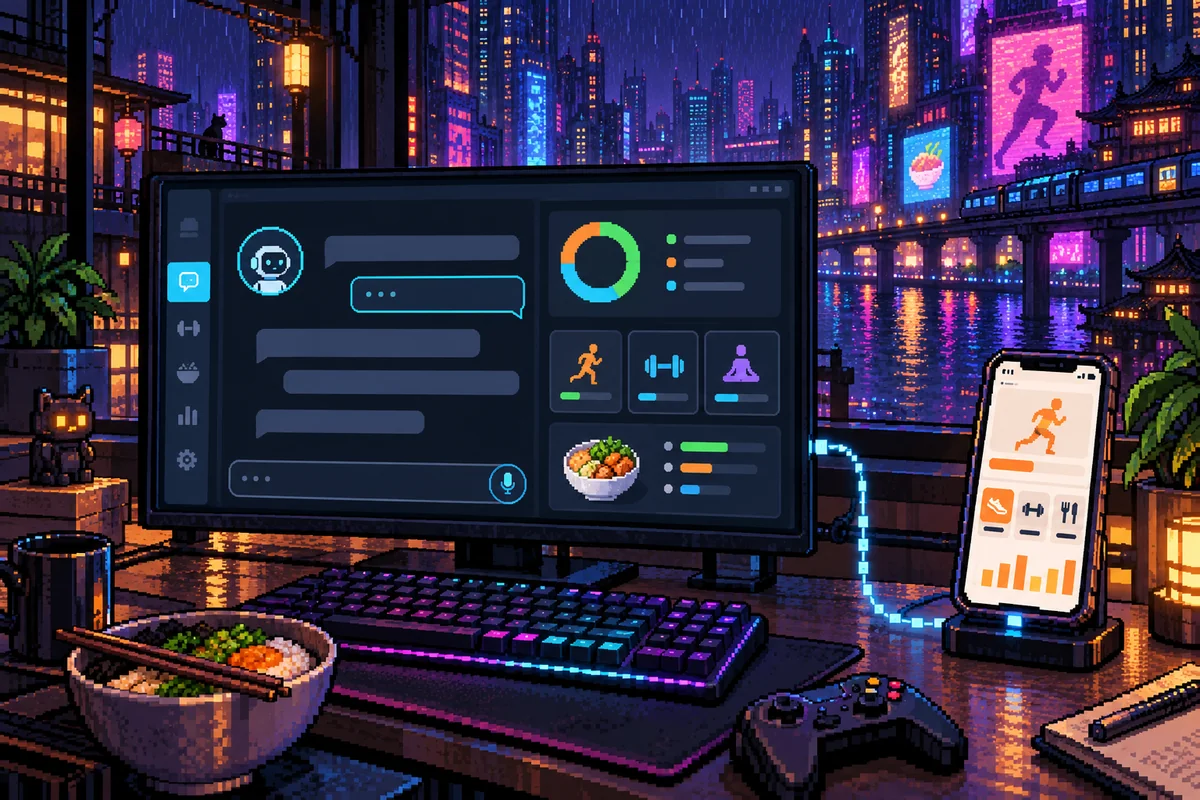
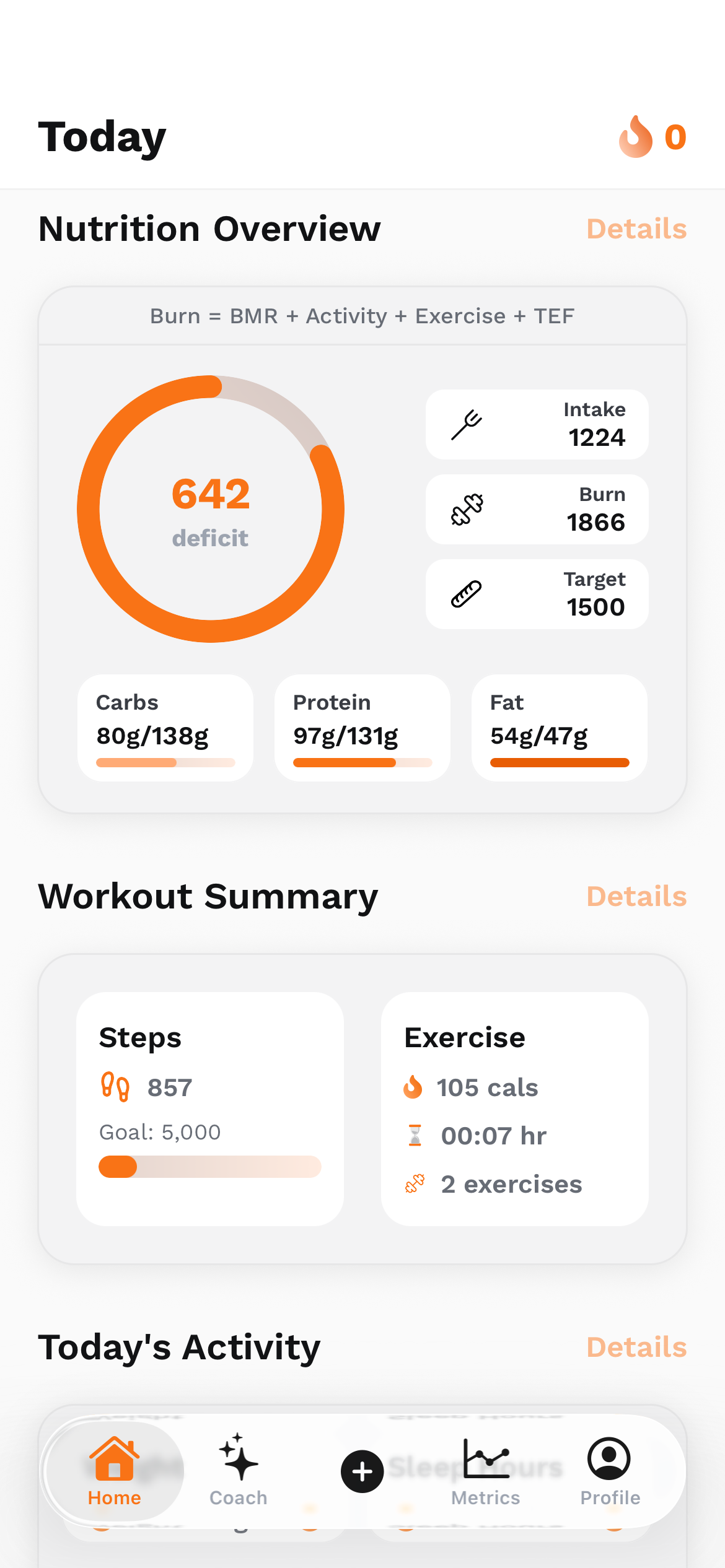
I want our fitness app to be useful in the places people already ask questions. UltraFit360’s MCP connection brings the signed-in user's fitness records into ChatGPT or Claude, so a conversation can work from logged meals, training and goals. It can also make supported changes. The important distinction is between discussing an idea in chat and asking a connected tool to change the app.
Your conversation can use records you actually logged
MCP is the Model Context Protocol: a way for an assistant to discover and use a service's exposed tools. In UltraFit360’s personal connector, those tools work with the connected user's account. You do not have to paste a month of nutrition and workout records into the conversation to ask about them.
That makes a question such as “How did my logged training compare across the last two weeks?” much more concrete. The assistant can retrieve the relevant records, describe the period it inspected and make clear where the history is incomplete. It should still distinguish what the records show from any interpretation it adds.
This guide covers the publicly documented personal-fitness workflow, checked against the application’s implementation. Tool names below are public interface labels, not private backend functions or instructions for calling an internal API. Availability depends on the connected version, the assistant and the permissions allowed for your account.
Connect the personal app first
Start with an UltraFit360 account and complete onboarding in the mobile app so the connector has the profile and targets it needs. In ChatGPT, look for UltraFit360 in the available Plugins directory, open its listing and follow the sign-in flow. Select or mention the connected app when asking it to retrieve data or perform an action.
Claude supports remote MCP connectors through its connector controls. Follow UltraFit360’s public connection walkthrough together with Anthropic’s current setup guide, then sign in with the intended UltraFit360 account. The connector can be enabled for a conversation after setup. You do not need to share your password or a personal access token with the assistant.
Menus, plan support and workspace policies change. A listed personal app and a custom MCP connection are different setup paths. If a control is unavailable, check the assistant's current official guidance and your workspace settings. I would use the linked walkthrough for the public connection address rather than reproduce infrastructure details in this article.
Read tools: ask a better question about your history
The public guide describes these read capabilities. They retrieve information; they do not log food or change a program. You can use ordinary language to ask for a specific date range, target comparison or summary. The assistant chooses from the available tools.
- Summarize my logged meals for the last seven days and compare them with my current targets.
- Compare my completed workouts from these two date ranges.
- Show my current program and explain its weekly structure.
- Which days are missing nutrition records in this period?
Scroll the table horizontally to see all columns.
| Public tool | User-facing purpose |
|---|---|
get_nutrition | Review logged meals and daily calorie/macro totals. |
get_body_metrics | Review recorded body measurements over time. |
get_workouts | Review logged training sessions and recorded personal bests. |
get_coaching_memory | Read the profile, goals and coaching context available to the connector. |
get_progress_overview | Bring nutrition, training, metrics and coaching context into one summary. |
get_current_program | Inspect the workout program currently assigned to you. |
list_exercises | Find exercises in the supported catalogue. |
list_programs | Find available ready-made program templates. |
Write tools: changes that can reach the app
These tools are useful because they can change the connected account. A prompt should identify what you want changed, and the assistant should explain the effect clearly. Client approval settings differ; do not assume every action is held as a draft until a second confirmation. Review the permissions you enable.
Scroll the table horizontally to see all columns.
| Public tool | Supported change |
|---|---|
log_meal | Record food you actually ate, with portions and nutrition values. |
update_goals | Change supported daily targets such as calories, macros, water or steps. |
create_meal_plan | Create planned meal options, appending or replacing as requested. |
replace_exercise | Swap supported exercises within the active workout program. |
assign_program | Make an available template your active program. |
create_custom_program | Build a custom workout program and make it active. |

A meal plan is different from a meal you ate
This is the distinction I would learn first. “Add a breakfast option to my meal plan” describes a future choice. “Log the breakfast I ate today” describes an event. The planning tool and the food-log tool exist for different jobs, so a helpful conversation should not turn one into the other without asking.
For an eaten meal, give enough information to make the record useful: foods, quantities, date and meal type. If the assistant estimates nutrition, inspect its assumptions. A vague portion can make a precise-looking total misleading. You should be able to correct the proposed quantities before relying on the resulting diary.
For a meal plan, specify whether the new options should join the current options or replace them. That is particularly useful when an existing routine is mostly working and you only want more variety. A conversation can make the request easier to express, but the difference between “append” and “replace” still matters.
Suggest two additional lunch options for my existing meal plan.\nUse my current goals as context.\nShow the foods, portions and estimated macros first.\nDo not log these as meals I have eaten.\nWait for my approval before saving the chosen options.Inspect the current program before replacing it
The same idea applies to workouts. An exercise swap is a smaller change than assigning a different template, and building a new program can change which program is active. Ask the assistant to inspect the current assignment so the proposal has context and you understand what will be replaced.
A useful request might name the equipment available, the days you can train and which exercises you want to preserve. It should ask the assistant to choose supported catalogue entries. The public workflow supports both ready-made programs and a custom-program path; it does not make an invented exercise automatically valid.
After an authorized change, open the mobile app and check the resulting plan. If a tool reports an error, read that result before retrying so the same action is not performed twice unnecessarily. I want the conversation to end with a verified result in the app, not merely a confident sentence that a change was made.
- Show my current program before proposing any changes.
- Suggest catalogue alternatives for this exercise using the equipment I have.
- Compare two available templates without assigning either.
- Draft a new schedule and explain which active program it would replace.
Your personal connector and a coach connector are separate
The personal workflow concerns your own account. UltraFit360 also documents a separate coach connector for authorised coaching work, such as reviewing clients and managing plans. A personal connection should not be described as a way to look up another person's logs.
The coach guide describes client-access boundaries tied to accepted coaching relationships and supported roles. It also distinguishes private library work from actions a client sees. Client-facing changes use a preview-and-approval workflow in that connector. A directory listing for the personal app does not establish that the coach connector is listed in the same directory.
If you are interested in the coaching workflow, follow its separate guide and sign in with an eligible coach account. For family accountability, the same consent and access rules still apply. Being related to someone does not make their fitness history part of your personal connector.
Know what stays in the app
The public personal-connector guide does not expose every mobile feature. Meal-photo and progress-photo analysis, human-coach messaging, check-ins and scheduling are not part of that documented personal tool set. Do not assume that a feature visible in the app can be invoked from the personal connection. The coach connector has a different set of capabilities.
Tool availability is also different from accuracy. The assistant can summarize a nutrition history, but it cannot turn missing meals into observed data or turn a visual estimate into a clinical measurement. Review the date window, source records and assumptions behind an answer, especially when it leads to a change in a plan.
You remain in control of the connection and the goals you choose to share. Check permissions in the assistant's connection settings and disconnect when you no longer want the link active. The experience I want is simple: less copying between screens, clearer questions about real records and deliberate changes that you can verify in UltraFit360.
Sources & project links
- UltraFit360: public MCP tool guide
- UltraFit360: ChatGPT and Claude connection walkthrough
- UltraFit360: the separate coach connector
- OpenAI: apps and plugins in ChatGPT
- OpenAI: connecting custom MCP servers
- Anthropic: getting started with remote MCP connectors
Technical references checked .