UltraFit360 started for me with an SRS: a software requirements specification. I took that starting point, wireframed the mobile experience in Figma, and built the React Native frontend for Android and iOS. This is the frontend side of that story: turning requirements into screens, reusable components, navigation, and layouts that have to work on a real phone.
A requirements document is the beginning of the interface
An SRS can tell you what a product must support without showing you what a person should see first. That gap is where the design work starts. A requirement becomes much easier to build when I can connect it to a user task, the information needed for that task, and an observable result.
For a fitness app, the interface can quickly become a wall of numbers. Nutrition, workouts, activity, and progress all matter, but they do not all need equal emphasis at every moment. The question is which information helps someone make the next decision, and which detail belongs one level deeper.
I began with requirements and made the wireframes and frontend from there. The process asks for two kinds of translation: first from a product requirement into an interface, then from that interface into a working screen. The first step decides what needs to be clear. The second decides how to keep it clear when the app runs.
I translated the product into connected screens
The useful unit of a mobile design is often a flow. A home screen leads into a detail screen; an entry action opens an input path; saving returns the person to a state that reflects what changed. Drawing those connections in Figma makes the interface more than a set of attractive frames.
The current app source includes onboarding, dashboard, workout, nutrition, coaching, profile, and metrics screens. That gives the frontend a lot of different jobs. A summary needs scanning speed, a logging screen needs low-friction input, and a detailed analysis needs enough space to explain itself.
I think of the wireframes as a way to keep those jobs separate while preserving a shared visual language. Cards can look related without carrying identical content. Navigation can stay familiar while the depth of information changes. A consistent shell gives the user a stable reference point as the product becomes more capable.
- Summary: what is happening today?
- Detail: what contributes to that result?
- Action: what can I record or change?
- Feedback: did the action complete, and what should I do next?
The Figma decisions have a home in the code
The React Native repository makes the connection to the design file visible. Welcome-screen spacing comments refer to Figma, shared controls carry design dimensions, and the footer navigation refers to Figma metadata and SVG assets. Those are concrete traces of the design-to-code process.
The frontend is organised into screens, components, hooks, constants, and shared styles. That separation matters when the same visual idea appears across many routes. A reusable button should carry its behaviour and states with it; a screen should mostly explain how those pieces combine for a particular task.
The checked-out project uses React Native with Expo and TypeScript, alongside React Navigation, safe-area utilities, SVG support, gradients, and animation libraries. That is the current repository snapshot. My focus here is how the frontend design becomes a maintainable interface within that stack.
Android and iOS share the product, but not every layout rule
A shared React Native codebase still has to account for physical differences between phones. The status bar, home indicator, software navigation buttons, keyboard, and available content height all influence where controls can safely sit. Copying the same bottom offset everywhere is an easy way to make a polished design feel broken.
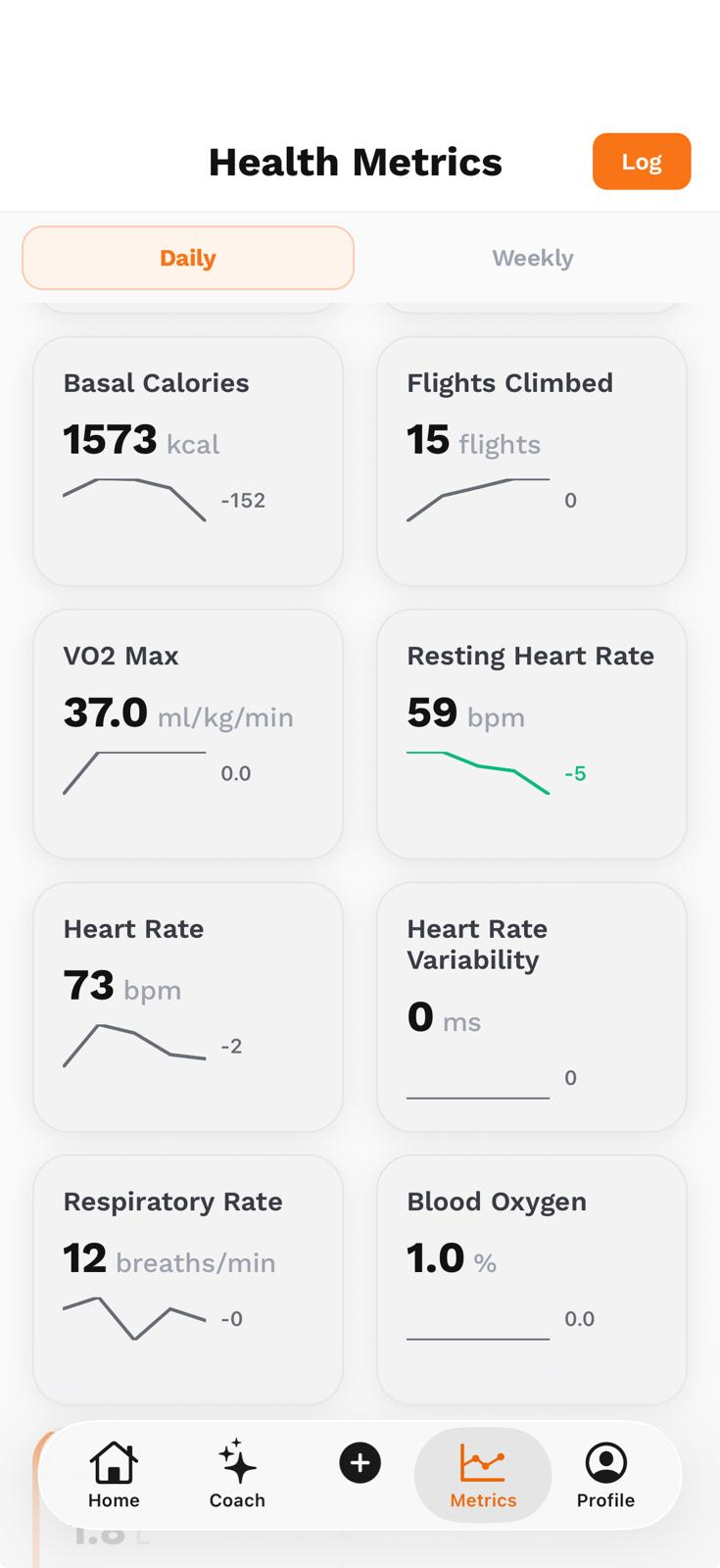
The current navigation demonstrates this directly. App.tsx sends the main dashboard, coach, metrics, and profile routes through NativeTabsLayout. That component uses react-native-bottom-tabs on iOS and supplies a custom SVG-based FooterNavigation on Android. The custom footer calculates Android bottom padding through a safe-area hook. The visual intention stays shared, while each path accounts for its platform.
That is the sort of work I mean by building for both platforms. The primary action must stay reachable, the last row must be scrollable above persistent navigation, and the keyboard must allow the form to be finished. These are practical layout checks that a static mockup cannot settle on its own.
The iOS glass-layout problem is about contrast and boundaries
Glass-style navigation looks simple in a still image: a translucent surface floating above content. In a working interface, the background changes as the screen scrolls. Text, icons, shadows, and content beneath the bar all compete. The difficult part is keeping the controls readable while making the layer feel separate.
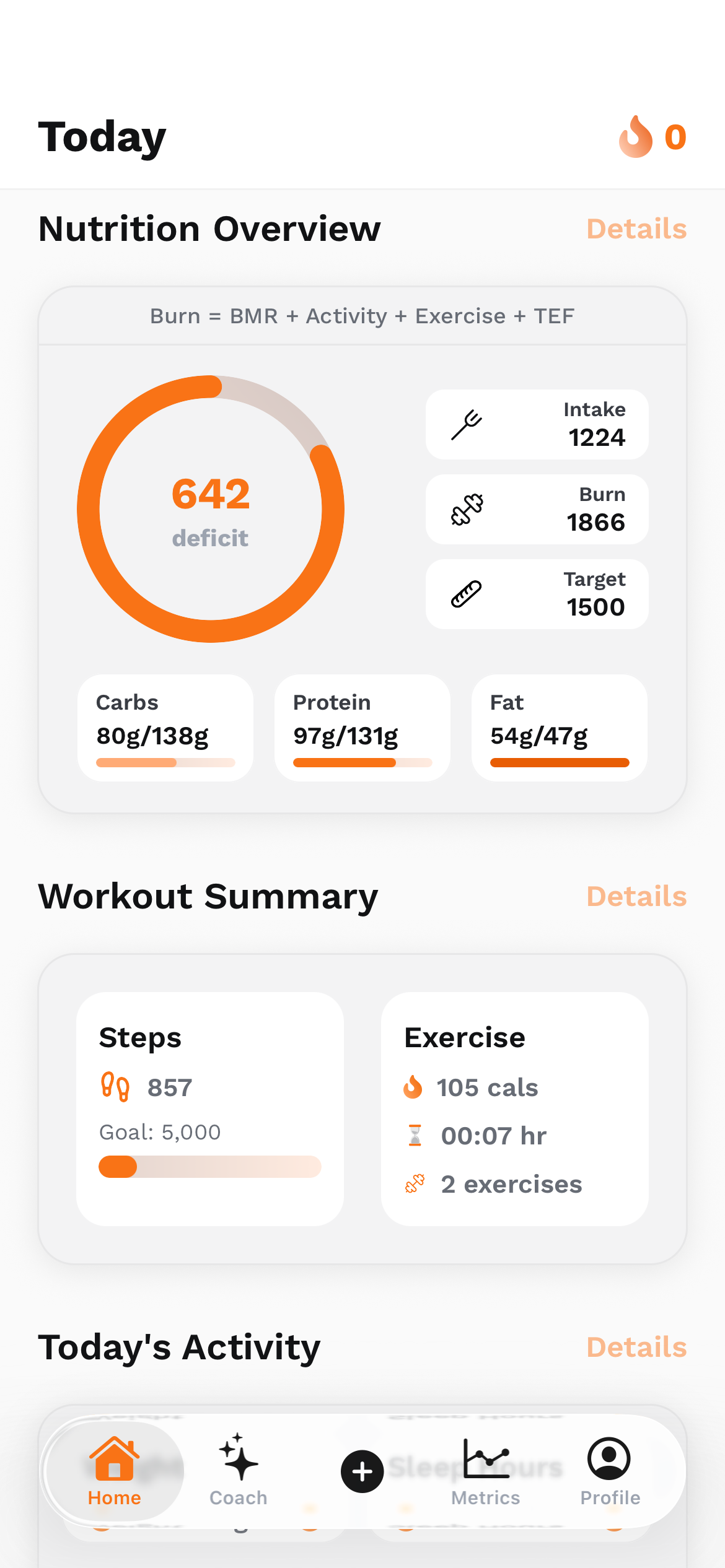
The original dashboard screenshot shows the visual direction clearly: a floating rounded bottom bar over the app content. The active main-tab path in NativeTabsLayout uses the native TabView on iOS, enables translucency, and uses SF Symbols. On Android it supplies its own footer renderer. That platform split is a concrete implementation decision behind the shared design.
The library uses native platform primitives, including SwiftUI’s TabView on iOS. Its current documentation describes iOS 26 Liquid Glass behaviour and notes that some tint properties behave differently there. Using a native shell means checking the operating system’s material and interaction rules as well as the colours drawn in Figma. The exact appearance still depends on the OS and app build.
There are other surface treatments in the repository too. The custom footer has a translucent variant whose native-effect comments remain unfinished, and loading and workout-summary overlays use expo-blur. Those comments describe that custom component; they do not describe the active native iOS TabView. Expo’s separate GlassView API is another option for native glass surfaces on supported iOS versions. I keep these paths distinct when reasoning about the layout.
- Check the bar over light, dark, and visually busy content.
- Reserve enough scroll space so the final content stays visible.
- Keep the selected item understandable without depending on transparency.
- Test the fallback surface and larger text as deliberately as the effect.
<TabView
  navigationState={{ index, routes }}
  onIndexChange={handleIndexChange}
  renderScene={renderScene}
  translucent={true}
  tabBar={Platform.OS === 'android'
    ? renderAndroidTabBar
    : undefined}
/>The frontend has to work between the ideal screenshots
A dashboard screenshot usually captures a populated state. The app also needs to handle the time before the data arrives, the case where nothing has been logged, and the point where something goes wrong. I think those states deserve the same layout attention as the most polished screen.
For a data-heavy interface, the important distinction is between a real zero, unavailable information, and a calculation that is still loading. Those need different visual treatments. Clear labels and stable card dimensions make it easier to understand what the interface actually knows.
The repository includes local and realtime hooks, query caching, health-data integration, and many domain-specific screens. Those systems give the frontend changing information to present. My role in this story is designing and coding the mobile frontend from the requirements, with the wider application providing the services those screens connect to.
What I take from the SRS-to-app process
The part I value most is the continuity. I could connect a requirement to a wireframe, a wireframe to a component, and a component to the screen it supports. That makes a design decision easier to explain and a frontend problem easier to locate.
It also changes how I think about “from scratch”. The work includes deciding what belongs together, making the first visual structure, giving repeated patterns a reusable form, and handling the parts that only become obvious once the app runs. A coherent set of screens can keep evolving beyond the first screenshot that looks right.
The broader Figma article explains the visual approach behind that work. The MCP entry goes into the bridge between the hand-made design file and the IDE: how structured design context can help implementation while leaving the design and review decisions with me.
Sources & project links
- UltraFit360 mobile source repository
- UltraFit360 website and original screen assets
- React Native Bottom Tabs: introduction
- React Native Bottom Tabs: TabView
- Expo: GlassEffect
Technical references checked .