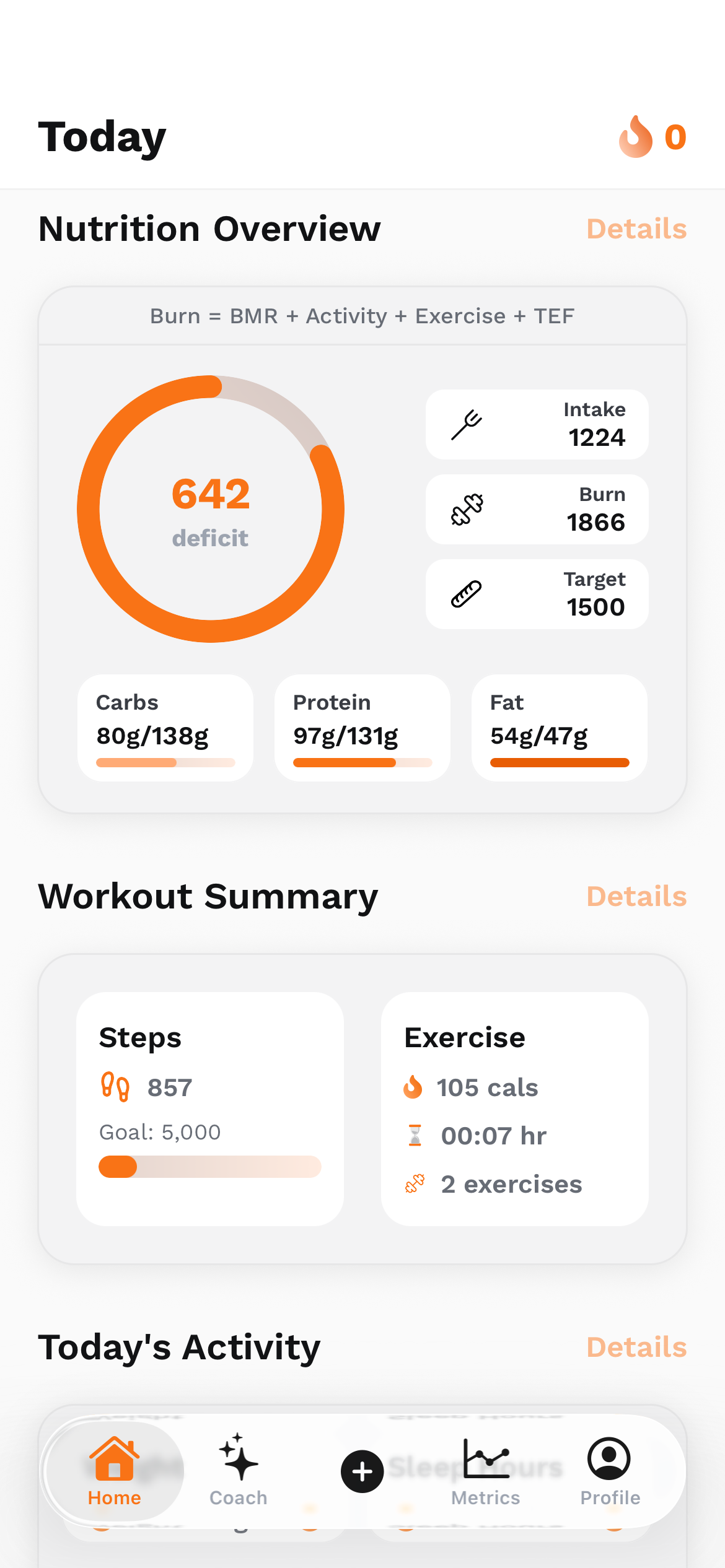
I made the wireframes in Figma by hand. MCP helped bring that design context into the IDE while I coded the frontend. That is the useful part of the workflow for me: the design decisions already exist, and the coding tools have a better way to inspect them than trying to guess everything from a flat screenshot.
What Figma MCP actually connects
MCP stands for Model Context Protocol. In this workflow, Figma exposes structured design information to a compatible coding client. The agent can inspect the selected design while working with the repository. Figma supplies context; the coding agent uses that context to help write an implementation.
That division matters. A design can express a component, layout, variable, and visual reference. The application still has routes, existing components, data contracts, platform constraints, and accessibility requirements. Those need to be understood together before a generated change belongs in the project.
I care about the connection because it keeps my hand-made design relevant during implementation. The more precisely the IDE can inspect what I drew, the less the conversation has to rely on me repeatedly describing the same spacing, grouping, and component intent in prose.
The design file is part of the prompt
A useful prompt starts before I type into the IDE. I want the design to have an understandable hierarchy. A repeated button should look like a repeated component in the file, and the distinction between a label, a value, and an action should be visible in the structure.
Figma’s current guidance recommends meaningful layer names, reusable components, variables, Auto Layout, and annotations. That is good preparation for the human reading the file as well as the agent inspecting it. A name such as “NutritionSummary” carries more intent than “Group 47”.
I also want the codebase context to be explicit. If the project already has a primary button, a screen container, and shared typography, they should be part of the task. Otherwise an apparently accurate screen can quietly introduce a second design system inside the same app.

The Figma MCP tool names worth knowing
These are current official tool names, with short descriptions of their role. The tools exposed in a particular IDE depend on its integration and whether it uses the remote or desktop server. This is a reference to the documented capabilities; individual projects only need the tools relevant to their task.
Scroll the table horizontally to see all columns.
| Tool | What it provides |
|---|---|
get_metadata | A lightweight XML outline of the selection. |
get_design_context | Design context and code-oriented information for a layer or selection. |
get_screenshot | A visual reference of the selection. |
get_variable_defs | Variables and styles used by the selection. |
get_code_connect_map | Mappings from design instances to code components. |
add_code_connect_map | A mapping between a Figma component and a code component. |
Give the IDE a task it can finish and you can review
“Build my Figma” leaves too much open. I want the prompt to say which frame matters, which framework the project uses, which existing components to reuse, and what a successful result looks like. The task should be small enough that I can compare the result with the original design.
The template below is an example of how I would frame a focused implementation task. Replace the bracketed details with the actual design link and repository paths. A client can choose its own tool sequence; what matters here is giving it an unambiguous task and a result that can be checked.
Implement [Figma frame URL] in this existing React Native app.

Inspect the frame structure, design context, variables, and screenshot.
Read the existing screen, shared styles, and components before editing.
Reuse [screen container], [primary button], and the existing tokens.

Keep the navigation and data contracts already in the repository.
Handle safe areas, long labels, keyboard overlap, and loading states.
Do not add a new UI library to reproduce a single frame.

Compare the running screen with the Figma reference at target sizes.
Explain any platform-specific differences and anything still unverified.Why React-looking context can still support React Native
Figma explains that get_design_context can return a React-and-Tailwind-like representation because it is a format models can interpret. That representation is design context rather than production-ready code. The target language, framework, and repository conventions still need to be specified.
That distinction is particularly useful when moving between my website and mobile work. A browser div and a native View have different responsibilities. A CSS effect and a native material have different APIs. A mobile input has to behave with the operating system keyboard. Similar-looking designs can require meaningfully different implementation choices.
For a React website, I would look for semantic elements, links, responsive CSS, and focus behaviour. For React Native, I would look for the project’s view and text components, safe-area handling, navigation patterns, and platform behaviour. Matching the screenshot and fitting the application both matter.
Code Connect helps the design point to real components
Code Connect can attach implementation details to design components so the agent has a stronger reference for reuse. Figma’s documentation describes design properties, imports, usage snippets, and instructions being included in the supplied context when the appropriate connections exist.
I treat that as a useful option for a growing component system. Even without a mapping, the task can explicitly tell the agent where the existing component lives and which props it supports. The important goal is to keep one coherent family of controls as more screens are implemented.
A component relationship also needs maintenance. If the code changes and the guidance stays stale, an agent can follow an outdated example very consistently. The design file, its documentation, and the implementation need to describe the same behaviour for the connection to stay useful.
When the output drifts, reduce the scope and compare
A large frame can contain far more context than the current change needs. Figma recommends smaller selections for heavy designs, with metadata inspection as a way to find the relevant part. That gives the implementation a tighter boundary and makes the result easier to inspect.
My review questions are practical: is the reading order right, are the repeated gaps consistent, does the text wrap sensibly, and can I still reach the action on a smaller device? I also want to know whether the change reused the project’s components or quietly duplicated them. These checks connect visual fidelity to code quality.
If the result is wrong, I want to identify the missing decision. The prompt might have omitted the platform, the design might not show an important state, or the codebase might already contain a pattern the agent did not inspect. Tightening that context gives the next pass a specific problem to solve.
Connect the tools; keep ownership of the result
Figma’s remote MCP endpoint is https://mcp.figma.com/mcp, with sign-in through the supported client workflow. The official setup page maintains the current client instructions. That is the place to check when connecting an IDE or choosing between remote and desktop integrations.
The current toolset also extends beyond reading designs: remote capabilities include generate_figma_design for bringing live web UI into design layers, generate_diagram for FigJam, and send_code_to_figma for importing a local project. Availability varies. These are additional documented options in the wider workflow.
For my frontend work, the central idea remains simple. I make the design, connect the relevant context to the IDE, build within the project’s constraints, and review the working interface. The useful shortcut is carrying information accurately between tools. The responsibility for deciding what belongs on the screen stays with me.
Sources & project links
- Figma MCP: tools and prompts
- Figma MCP: server and agent responsibilities
- Figma MCP: file structure
- Figma MCP: target framework
- Figma MCP: Code Connect
- Figma MCP: selection size
- Figma MCP: remote setup
Technical references checked .