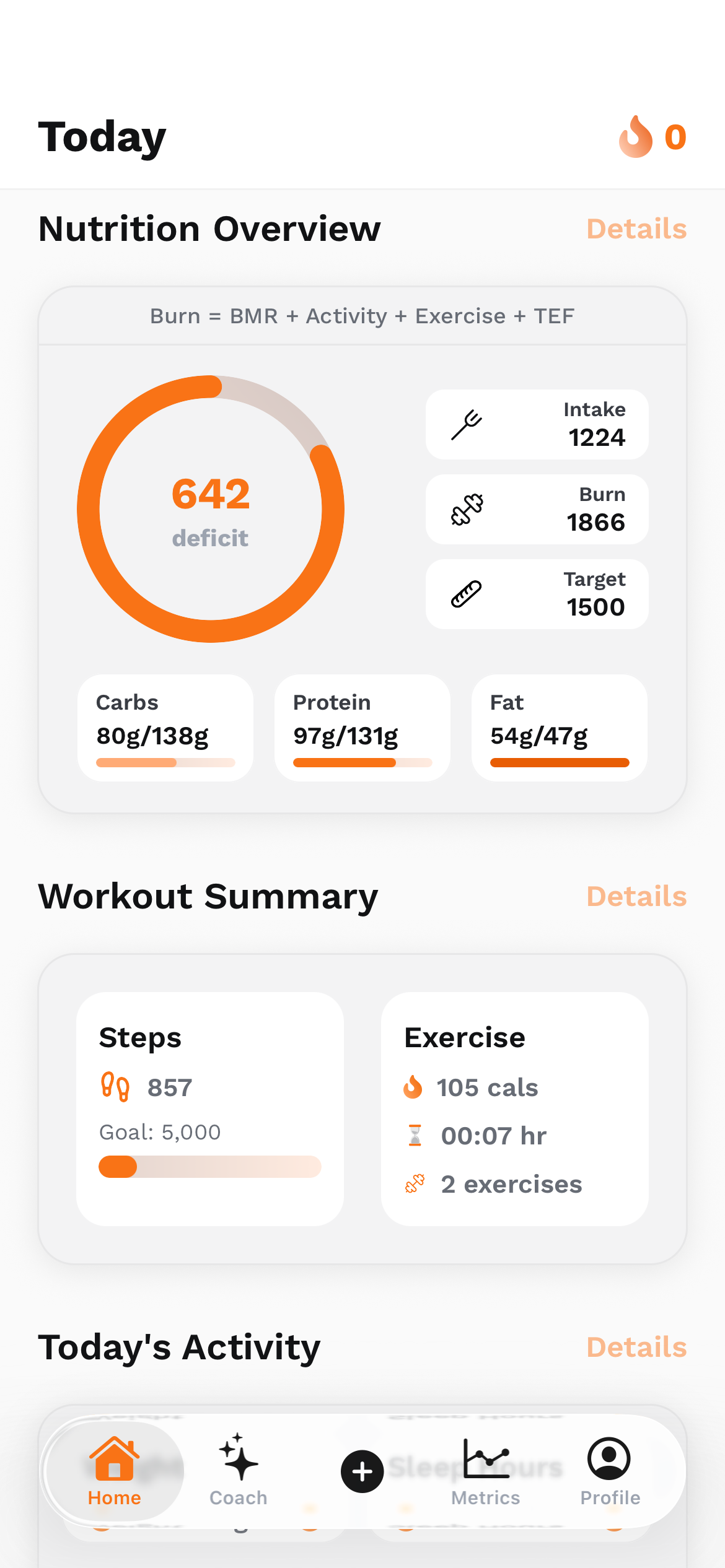
I designed and built the frontends for the UltraFit360 mobile app, the UltraFit360 website, and Aptixlabs. The work started in Figma and continued in React Native, React, HTML, and animation code, with MCP tools helping carry design context into development. That overlap between drawing the interface and making it behave is the part I enjoy most.
I start with the job the screen has to do
A blank Figma frame is inviting. It is also an easy place to spend an hour choosing a shadow before deciding what the screen is for. For me, the useful starting question is much smaller: what should someone understand here, and what should they be able to do next?
On a website, that might mean understanding the product and finding the next useful link. In a fitness app, it might mean reading today’s nutrition summary or recording an activity. Those are different tasks. They need different amounts of information, different navigation, and different expectations about how often someone returns.
UI is the visible interface: type, controls, spacing, colour, and feedback. UX includes the journey around it: finding a feature, making a decision, recovering from an error, and knowing whether an action worked. A beautiful card still needs an understandable place in that journey. I want the wireframe to answer that before the styling does.
Wireframes make the awkward questions visible
My Figma-first process puts the arrangement on the canvas before it becomes frontend code. Low-fidelity wireframes are useful because a rectangle is cheap to move. I can put the primary action in a different place, group related information, or remove a competing section without first untangling component logic.
A wireframe becomes much more useful when it includes realistic content. A heading that says “Title” hides line wrapping. A card with “123” hides the difference between a short number and a long label. I think about empty, loading, error, disabled, and populated states as part of the interface, even when the first sketch only shows the main path.
For mobile, the keyboard and bottom navigation change the available space. For the web, a narrow viewport can change a multi-column composition into a reading order. I want the same information hierarchy to survive both. The desktop frame is one example of the layout, rather than a coordinate map to shrink onto every device.
- Identify the main task and the next action.
- Sketch the screen hierarchy and the route into and out of it.
- Try long labels, missing data, and a smaller viewport.
- Resolve the confusing parts before adding decorative effects.
Components turn a collection of screens into a system
Repeated visual decisions deserve names. A primary button, a metric card, and a navigation item should not become slightly different designs every time they appear. The same applies in code: I want a small family of reusable components with clear states, rather than a folder of almost identical screens.
Figma Auto Layout describes relationships such as direction, spacing, padding, and alignment. It helps a frame respond when its content changes. I think of it as a way to make the design explain itself: which region grows, which element keeps its intrinsic size, and which gap should remain consistent?
Variables and component variants can record decisions such as a colour role or an interaction state. In implementation, those decisions need a deliberate home in tokens, props, and styles. There is no automatic one-to-one conversion from every Figma feature to every framework. A clean design file makes that translation easier to reason about.
Glassmorphism, neumorphism, and the surface beneath the trend
I like expressive interfaces. This portfolio is a fairly obvious confession. But a visual style is useful only when it helps someone read the screen. The word “morphism” can make a straightforward design choice sound more mysterious than it is: how do the surfaces communicate grouping, depth, and interaction?
Skeuomorphism borrows cues from physical objects. Flat design reduces those cues. Material-style systems use layers and motion to make relationships clearer. Neumorphism uses gentle highlights and shadows to suggest a surface being pressed or raised. Glassmorphism lets a background show through a translucent, often blurred layer. Claymorphism uses rounded, inflated forms with a soft three-dimensional feel. Each treatment changes what competes with the content.
My practical test is simple: can I still identify the action, read the label, and tell which state it is in? If the answer depends on a faint shadow or one particular wallpaper, the surface needs more work. An effect should survive a less flattering background and an ordinary screen brightness setting.
Scroll the table horizontally to see all columns.
| Surface idea | Where it can help | What I watch for |
|---|---|---|
| Flat / minimal | Dense information and clear hierarchy | Controls still need visible states |
| Skeuomorphic | Familiar physical cues or playful controls | Decoration should not obscure meaning |
| Neumorphic | A restrained tactile accent | Soft edges can hide affordances |
| Claymorphic | Playful illustrations and dimensional accents | Volume should not compete with the task |
| Glassmorphic | A floating layer over changing content | Contrast, overlap, and compositing cost |
| Neobrutalist | A strong editorial or playful voice | Hierarchy and readability still matter |
The same design idea needs different web and native code
React and React Native share a component mindset, but a browser page and a native screen have different constraints. On the web I can use semantic HTML, CSS layout, real links, and browser focus behaviour. In React Native I am working with native views, platform navigation, safe areas, gestures, and a different text and layout environment.
That changes the implementation questions. Does a website card become a link or contain a separate action? Does the mobile action remain reachable above the keyboard? Should motion explain a transition, acknowledge input, or simply stop? The Figma frame supplies intent; the runtime decides whether the interaction actually holds together.
I approach animation the same way I approach a visual surface: give it a job. A transition can show that a panel expanded from a card. Feedback can acknowledge an action. If motion delays a simple task or makes text harder to read, it needs restraint. Reduced-motion preferences and keyboard access belong in that conversation too.
Where Figma Make fits into this workflow
Figma Make is Figma’s AI-driven prompt-to-app environment. It can use an existing design as context and turn an idea into an interactive prototype that can be iterated through conversation. That makes it useful for exploring how a proposed interface might feel once it responds to input.
I see a clear place for that kind of exploration: test a navigation idea, compare a few interactions, or discover which part of a static composition feels awkward in motion. A functional prototype gives a discussion something concrete to react to. Its generated implementation still needs to be assessed against the actual project.
My work on these projects is the Figma-first design and frontend implementation, supported by coding and MCP tools. Make adds another possible exploration path to that wider toolset. The manually designed file gives the visual decisions a home; the maintained application gives them working behaviour.
The handoff is a loop I can keep improving
Designing and coding the frontend myself makes the feedback loop unusually direct. A spacing decision that looked tidy in Figma might feel cramped with real text. A code component might reveal that two apparently different cards are the same pattern. Those are useful discoveries to bring back into the design.
The workflow I want to keep is straightforward: understand the task, wireframe the hierarchy, define the repeated pieces, build a working slice, and compare the result at real sizes. Tools can reduce the effort of carrying information between those steps. The judgement about what belongs on the screen remains mine.
The next two entries go deeper into that journey: first the UltraFit360 mobile frontend built from an SRS, then the Figma MCP connection that helps take hand-made wireframes into the IDE. Together they show the relationship between the design file, the codebase, and the interface someone finally uses.
Sources & project links
Technical references checked .