Remote Play uses your own console as the game machine; cloud gaming uses a provider's remote hardware. Both send video to another screen, but they have different ownership, setup and network constraints. For GTA 6, verify the current official support and eligibility of the exact route you want before assuming either works on every device.
Draw the path before comparing the experience
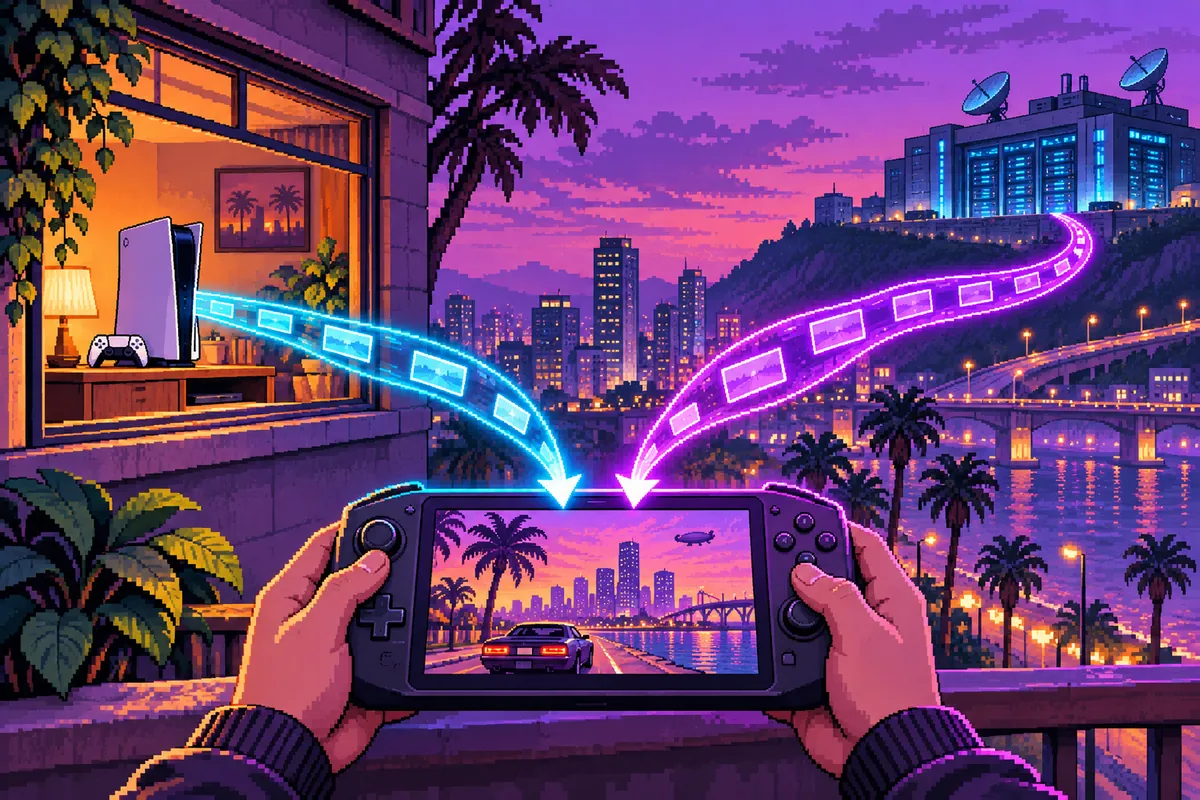
For Remote Play, imagine a controller action leaving your client, reaching your console, changing the game state and returning as video. Your home console and home network are part of that path even when you are elsewhere. For cloud gaming, replace the home console with the provider's game machine and service infrastructure.
That single distinction explains many troubleshooting differences. A home power interruption can break a Remote Play setup while a cloud provider remains available. A cloud queue or title eligibility change can block a service session while your own console still works. Neither route is simply a more portable installation of the game.
Check access separately from connectivity
Rockstar's November 18 platforms FAQ confirms Remote Play support on PlayStation and Xbox and announces Xbox Cloud Gaming on Series X|S and Xbox One. It identifies Series S graphics settings for the cloud route. This establishes the announced access paths, while current service eligibility and your actual network remain separate checks.
Start with the official publisher and platform information. Confirm that the title supports the route, that your client is supported, and that your account has the required entitlement. A working internet connection cannot fix an unavailable cloud title. Owning a game cannot fix an unsupported client by itself.
Prepare Remote Play before leaving home using the platform's current instructions, including console and account settings. For cloud access, inspect the actual product and service eligibility rather than a generic cloud marketing page. Region, plan and catalogue conditions can change, so retain the date of your check.
Two streams, different machines
The location that renders the game changes which connection and entitlement you depend on.
Remote Play
- Your console
Runs an installed game and must be prepared for supported remote access.
- Client connection
Carries controls to your home and video back to your current screen.
Cloud service
- Provider hardware
Runs an eligible title under the service's current access conditions.
- Client connection
Carries controls to the service and its encoded video back to you.
Remote Play adds dependence on your home setup. Cloud play adds dependence on the provider's catalogue and service eligibility.
Compare the failure points you actually control
Do not use this table as a performance scorecard. A local network Remote Play session and a distant internet session are different experiments. Likewise, a service can perform differently across locations and times. Test the route you intend to use rather than generalising from another person's broadband package.
Scroll the table horizontally to see all columns.
| Dependency | Remote Play | Cloud gaming |
|---|---|---|
| Game execution | Your supported console | Provider's remote hardware |
| Home console readiness | Important | Usually outside this route |
| Home network upload | Part of remote access from elsewhere | Not the same dependency |
| Current client network | Important | Important |
| Title and account eligibility | Console and remote-play rules | Service catalogue, plan and ownership rules |
| Service queue | Depends on the platform path | Can be a separate access constraint |
Make a small, fair comparison
Use the same screen, supported controller and client network when possible. Try a supported session at the time of day you expect to play. Record visible interruptions, control feel and text readability. Those are subjective observations unless you use a measurement method; label them accordingly rather than assigning fake millisecond results.
If you measure latency, disclose how the input and visible response were captured. Network ping alone does not include all game processing, encoding, decoding and display delay. If you compare image quality, use equivalent scenes and explain compression in the captures. The goal is a useful decision, not a winner manufactured from mismatched tests.
Diagnose the route that failed
For Remote Play, first confirm your console can run the game locally and that remote access is configured. Then isolate the home connection and the current client connection. For cloud play, separate sign-in or catalogue errors from stream-quality symptoms. A message saying the title is unavailable is different from a blurry but running session.
Try supported connection improvements such as a wired home console or a less congested client network where practical. Avoid opening arbitrary router ports or exposing services because an unrelated tutorial says streaming needs it. Follow the platform's own network guidance and keep account security enabled.
Choose the route that fits the trip
For someone who already owns and maintains a console, Remote Play may be a useful extension. For someone seeking an eligible service session without that home setup, cloud access can solve a different problem. The right choice depends on the dependency you are willing to maintain.
- Prefer your actual tested setup over an assumed universal speed advantage.
- Verify title, plan, region and controller support before buying access.
- Prepare home-console access while you can still reach the console.
- Expect both streaming routes to need a reliable network path.
- Keep local offline play as a separate requirement rather than a feature of streaming.
Frequently asked questions
Does Remote Play run GTA 6 on my phone? The phone acts as a client. In a Remote Play setup, your supported console runs the game and sends video to the phone while receiving its controls.
Is cloud gaming always faster than Remote Play? No universal latency ranking follows from the names. Routing, home upload, client network, encoding, service location and display behaviour can all affect the actual session.
Does cloud access require owning a console? That depends on the provider's current service and title conditions. Check ownership, subscription, supported client and region requirements for the exact GTA 6 offering.
Sources
- Rockstar, November 10: Pre-Load Grand Theft Auto VI Now
- Xbox: GTA VI product page
- Rockstar: GTA VI platforms, editions and boxed contents
- Related practical guide
Technical references checked .

Eeshan Singh
I’m Eeshan Singh Pokharia, an AI Full Stack Developer and CoFounder of UltraFit360. I work across AI features, full-stack product development, and web and mobile experiences—from Figma and frontend interactions to the systems behind them.
I am comparing network topology rather than reporting a latency race. No speed, frame-rate or image-quality measurements in this guide are presented as GTA 6 test results.
Meet the author