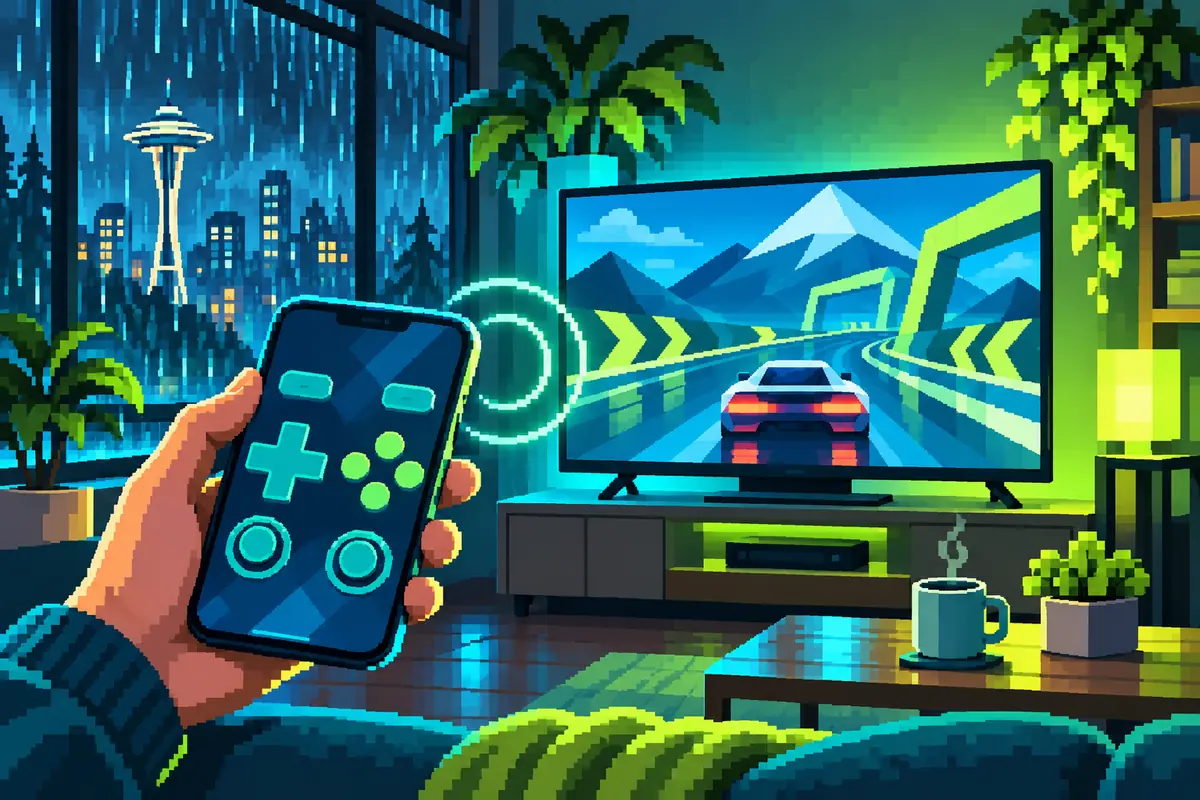
Xbox's November 4 preview lets a supported Android or iOS phone act as a controller in the phone browser for Xbox Cloud Gaming on a supported smart TV. In the latest supported TV experience, turn on Preview Features under Settings, then Account. Launch a cloud game without a physical controller connected and use the TV's pairing option when it appears.
What you need for the phone controller preview
This is an Xbox preview feature, so start by checking the supported TV experience and whether cloud play is available for your account and region. A smart TV having a browser does not establish compatibility. Likewise, an Xbox app visible in a TV store does not guarantee your TV model and software version are on the current preview list.
Xbox describes Android and iOS support and controls in the phone's browser. The phone sends input for a TV game session. You still play while looking at the TV, and the phone does not replace the screen hosting the cloud game. Certain games can have a touch layout adapted to their controls, so two games may present different buttons.
How to pair a phone to the TV session
Think of the process in three parts: the TV starts the session, the phone opens the pairing page, and the game consumes the input. Test each part independently. If the game never starts with ordinary input, troubleshoot the TV cloud session first. If it runs with a controller but the phone option is absent, look at preview eligibility and how the session was launched.
- Open the latest supported Xbox experience on the smart TV and sign in.
- In Settings, open Account and enable Preview Features if the option is available.
- Launch a cloud game with no physical controller connected.
- Choose the option to use a phone and scan the QR code on the television with the supported phone.
- Keep the opened control page visible and verify that one button works before starting a match.
Fix a missing pairing option or unresponsive input
A phone browser can be interrupted by screen sleep, a call or switching apps. A fresh pairing attempt gives you a cleaner test than changing several settings at once. If an option only appeared for one TV profile or game, record which account, game and device version worked. The detail is useful when sending preview feedback.
Scroll the table horizontally to see all columns.
| Symptom | What to verify | Low-impact next step |
|---|---|---|
| Preview Features missing | TV model, latest supported app and region | Confirm official support before changing your account |
| Game runs but the phone option is missing | A physical controller may still be connected | Disconnect it and start a new eligible session |
| QR code opens but controls stop responding | Whether the control tab stayed open and the TV session is still active | Generate a fresh code in the current session |
| Inputs work but feel delayed | Connection stability and whether the delay also occurs with a regular controller | Compare with the same game and session conditions |
Phone browser controls and the Xbox Nano preview
Xbox announced the Xbox Nano Controller cloud-connect preview alongside the phone feature. Xbox described Nano cloud connect as a US preview that uses the physical controller's Wi-Fi path to connect to the cloud session. It has a separate setup. The phone browser workflow begins from the TV's pairing option and does not require buying that controller.
If input feels sluggish, avoid treating every symptom as one latency number. You are experiencing the path from input to the streamed image. A congested connection or processing on the display can make a responsive button feel late. Try a familiar menu and a timing-sensitive action on the same game before concluding that the phone is the bottleneck. This guide describes the documented preview flow and makes no device-specific latency claims.
What to include when reporting a preview issue
Xbox points to a feedback action in the phone controller interface. A useful report includes the TV model, TV app version if visible, phone operating system and browser, which game was running, and the stage at which the connection failed. Avoid sharing pairing codes, account identifiers, or screenshots with private messages.
Try one variable at a time. If the phone worked in one game but a touch layout was incomplete in another, include the button or action that was missing. If the preview tile was absent entirely, report that separately from a QR code that opened unsuccessfully. A precise reproduction helps distinguish rollout and eligibility from a broken control session.
Keep a known-good input path for comparison
Begin with a game you can already launch on the same TV, network and account with a physical controller. Note what happens in the game menu before testing a demanding segment. Then quit the game, disconnect the physical controller, and try a new phone-input session through the preview. A comparison made on the same TV is easier to interpret than one between the phone preview on a TV and a conventional session on a laptop.
If the controller page opens but you see the wrong layout or a missing action, try an obvious input such as moving between menu options. Note whether the failure is limited to a particular game action or affects every input. Report the on-screen instructions you received without recording a live QR code. A pairing code is specific to a session and has little value in a published guide.
Frequently asked questions
Can I use a phone as a controller on any smart TV? The preview requires a supported TV experience, an eligible cloud gaming session, and a compatible Android or iOS phone.
Do I need an Xbox Nano Controller to use my phone? The phone uses its browser after TV pairing. Xbox Nano cloud connect is a separate physical-controller preview.
Why is there no pairing code in my game? Check preview availability and whether a physical controller is connected. Try launching a supported cloud game in a fresh TV session.
Sources
- Xbox Wire: Xbox Cloud Gaming input previews
- Xbox Wire: PC, web and cloud experience update
- Xbox: Cloud Gaming platform and supported device information
Technical references checked .

Eeshan Singh
I’m Eeshan Singh Pokharia, an AI Full Stack Developer and CoFounder of UltraFit360. I work across AI features, full-stack product development, and web and mobile experiences—from Figma and frontend interactions to the systems behind them.
A good input feature also needs a good recovery path. I wanted the guide to tell someone whether the missing piece is TV eligibility, the session pairing or the way the game responds to touch.
Meet the author