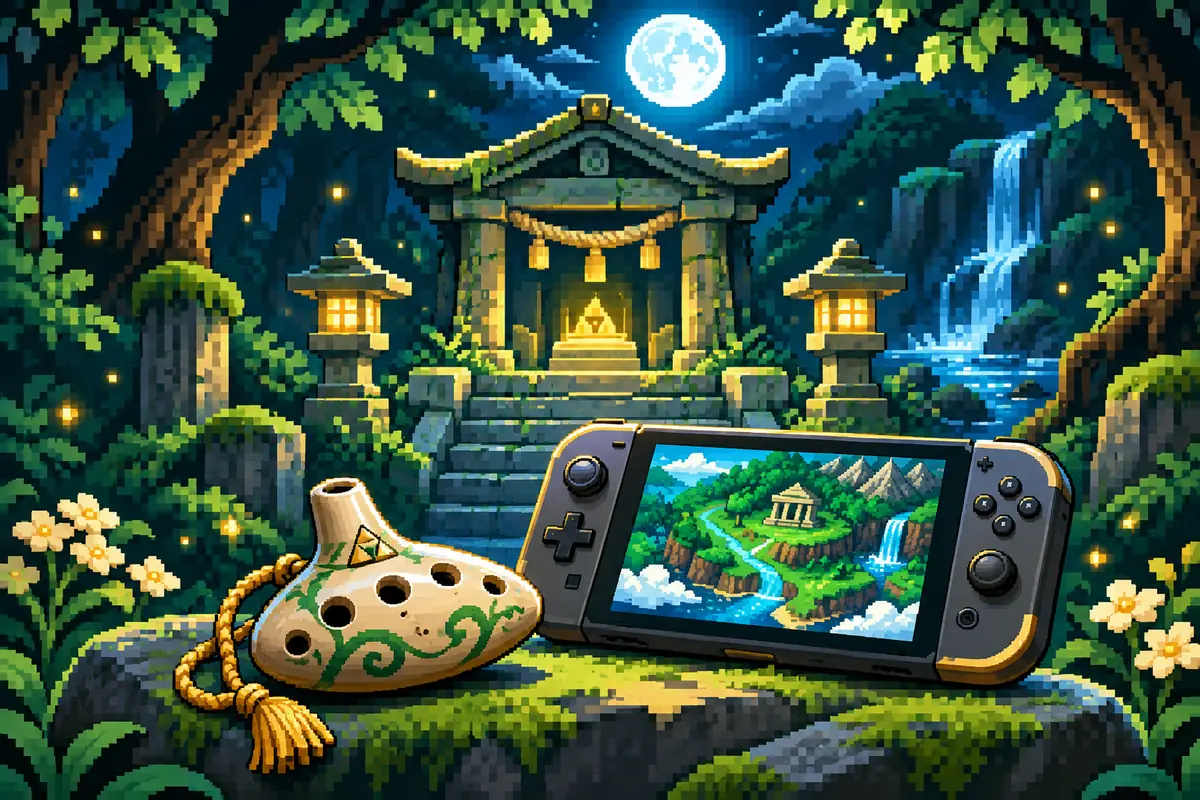
Ocarina of Time on Switch 2 adds free camera control, a jump command and a dash alongside familiar rolling. Nintendo also supports button or motion aiming for ranged weapons. Change aiming preferences in the in-game Options menu. Below are the published control changes, ocarina input settings, and the separate version 1.1.1 update details, checked November 7, 2026.
Ocarina of Time Switch 2 controls: what changed?
Nintendo's control changes belong to the Switch 2 remake. The version 1.1.1 changelog separately lists Zelda Notes support and general fixes.
The developer interview describes a jump command, holding the Roll Attack button to dash, and both a single-press Jump Attack and the newer jump-then-attack sequence. The remake's announcement also confirms Right Stick camera control. Use the on-screen prompts for the current action rather than following an old Nintendo 64 button map.
Scroll the table horizontally to see all columns.
| Action | Published Switch 2 behavior |
|---|---|
| Move the camera | Use the Right Stick to look around. |
| Jump | A dedicated command replaces the original reliance on automatic jumps at defined edges. |
| Dash or roll | Hold the Roll Attack button to dash; rolling remains available. |
| Jump Attack | Nintendo describes both the single-press route and jumping before pressing attack. |
| Aim a ranged weapon | Button and motion options are available. Adjust them in Options. |
Change ocarina buttons or use the Switch 2 microphone
For button input, follow the notes shown on the ocarina screen. Nintendo documents two layouts, selected with Swap Ocarina-Playing Controls in Options.
To try microphone input after obtaining an ocarina and learning a song, open the + menu, then System and Options. Set Ocarina Mic Input to Humming or Instruments. Nintendo's setup guide also asks players to check the console's Audio settings and use System Microphone. On the performance screen, the − Button opens Practice Mode so you can check recognized pitch and note duration.
What Nintendo says changed in 1.1.1
Nintendo lists version 1.1.1 as a November 4, 2026 update. It enables Zelda Notes and directs players to its setup at game startup. The remaining fixes are described in general terms, so the notes do not establish specific frame-rate changes or resolved quests.
The version belongs to the Switch 2 software Nintendo names in the support article. If you have several Zelda games in the library, or play another version through a different service, confirm you have selected the intended tile before comparing version numbers.
Scroll the table horizontally to see all columns.
| Reader question | Confirmed detail |
|---|---|
| What is the patch version? | 1.1.1 |
| When did it release? | November 4, 2026 |
| Is there a Zelda Notes setup step? | Follow the on-screen setup instructions after updating |
| What about saves? | Nintendo says existing save data remains available after the software update |
| Does it affect online features? | Nintendo says the update is required to use the game's internet features |
How to check the version and install the update
If you have automatic updates on, the new build may already be there. Check the version before reinstalling or changing storage. If the console cannot download, confirm the network connection and available space. Record any error code rather than deleting the game or its save files to see whether that helps.
- Connect your Switch 2 to the internet.
- From the Home menu, highlight the Ocarina of Time software icon without opening it.
- Press + or − and read the version displayed under the software title.
- Select Software Update and then Over the Internet.
- When the download finishes, reopen the same options screen to confirm the installed version.
Set up Zelda Notes after checking the version
Launch the game after the update and follow the startup instructions Nintendo references to configure Zelda Notes. If you are already on 1.1.1 but cannot reach the feature, check the current support page and the setup shown by your game.
If a startup notice disappears before you can read it, record what the game displays when reopened. Nintendo's public patch entry is useful for establishing that the feature has a setup step, but it does not answer every account or regional question. Use the instructions presented by your own game and console for the details that depend on your setup.
Read the update as a product change
Remaster conversations often bundle visual fidelity, the input feel, interface changes and companion features into the same story. For this release note, give each change its own evidence. A companion feature that you configure once affects onboarding. A performance improvement would need footage from comparable builds or an explicit publisher note. Nintendo's changelog here supports the former and describes general fixes without numerical performance claims.
A useful hands-on check has three observations: the installed version, the startup prompt or enabled feature, and whether an existing save opens. Use the same account and software tile before and after. Those are reproducible checks you can share without drawing conclusions about undocumented fixes. This guide is based on Nintendo's support notes, not a side-by-side device benchmark.
Troubleshooting without risking save data
If the screen says the game is current, read the installed version instead of assuming the console fetched 1.1.1. Nintendo can publish newer patches after this guide. If the game is older and won't update, check internet access and whether the console can update other software. A device-wide failure and a single software problem call for different support paths.
When contacting support, distinguish a failed download, a successful install with a missing startup prompt, and an online feature that fails after setup. Include the version, relevant error code and what you already tried. Keep screenshots clear of account information. The existing design comparison goes deeper into why the original game and newer console releases appeal to different players.
Three checks before calling the patch broken
If the options screen shows a version higher than 1.1.1, go back to Nintendo's update history. A later patch can include other changes, and its version is not evidence of a failed November install. If the version is lower, the console's update check is the next step. Keep these observations separate when talking to other players. “I installed it” and “I reached the new feature” describe different results.
A version-specific screenshot should show the software name and number with personal account details removed. A launch image shared by Nintendo can illustrate a release, but it cannot verify your own software state. That is why the diagnostic starts with the game's options screen.
Scroll the table horizontally to see all columns.
| Checkpoint | What to record | What it establishes |
|---|---|---|
| Game options screen | Installed version number | Whether the console installed the update you are looking for |
| First launch after update | Any setup message and what it asks for | Whether the feature needs onboarding on this console |
| Loading an existing save | Whether the selected save opens | Whether your ordinary play can resume after the update |
Why a companion feature needs a clear first-run step
Adding a companion feature changes more than the patch size. It adds an onboarding task after installation. A good setup message tells a returning player what the feature is, whether any action is required, and how to return to the instructions. If you are reviewing the remaster as a design project, assess the setup separately from the game itself.
The original game's reputation does not tell you whether a returning player can discover a new feature. A stronger comparison would observe a player starting from an older install, checking the version, and finding the companion setup without help. Use the publisher's listed behavior as the expected result and clearly identify any observations that come from your own device.
Frequently asked questions
How do I change motion aiming in Ocarina of Time on Switch 2? Nintendo says ranged weapons support button or motion aiming. Open the in-game Options menu to adjust the aiming preference.
How do I dash in the Ocarina of Time Switch 2 remake? Nintendo's developer interview says to hold the Roll Attack button to dash. Rolling remains available as another movement action.
What changed in Ocarina of Time update 1.1.1? Nintendo's November 4, 2026 notes list Zelda Notes support and general gameplay fixes. Follow the startup instructions to configure Zelda Notes.
Sources
- Nintendo Support: Ocarina of Time update history and installation
- Nintendo: Ocarina of Time for Nintendo Switch 2
- Nintendo Support: Switch 2 product help
- Nintendo: remake controls and aiming options
- Nintendo: developer interview on movement
- Nintendo Support: ocarina input settings
Technical references checked .

Eeshan Singh
I’m Eeshan Singh Pokharia, an AI Full Stack Developer and CoFounder of UltraFit360. I work across AI features, full-stack product development, and web and mobile experiences—from Figma and frontend interactions to the systems behind them.
This guide now covers the control questions returning players face as well as the launch patch. The instructions are checked against Nintendo's published documentation. They are useful setup references alongside the separate essay about Zelda, GTA VI and console buying.
Meet the author